B-1/E-23, Mohan Co-Operative Industrial Area, Mathura Road, Delhi-110044, India


- Digital Sign Apps
- 09-Mar-2026
- -
- 0 Comments
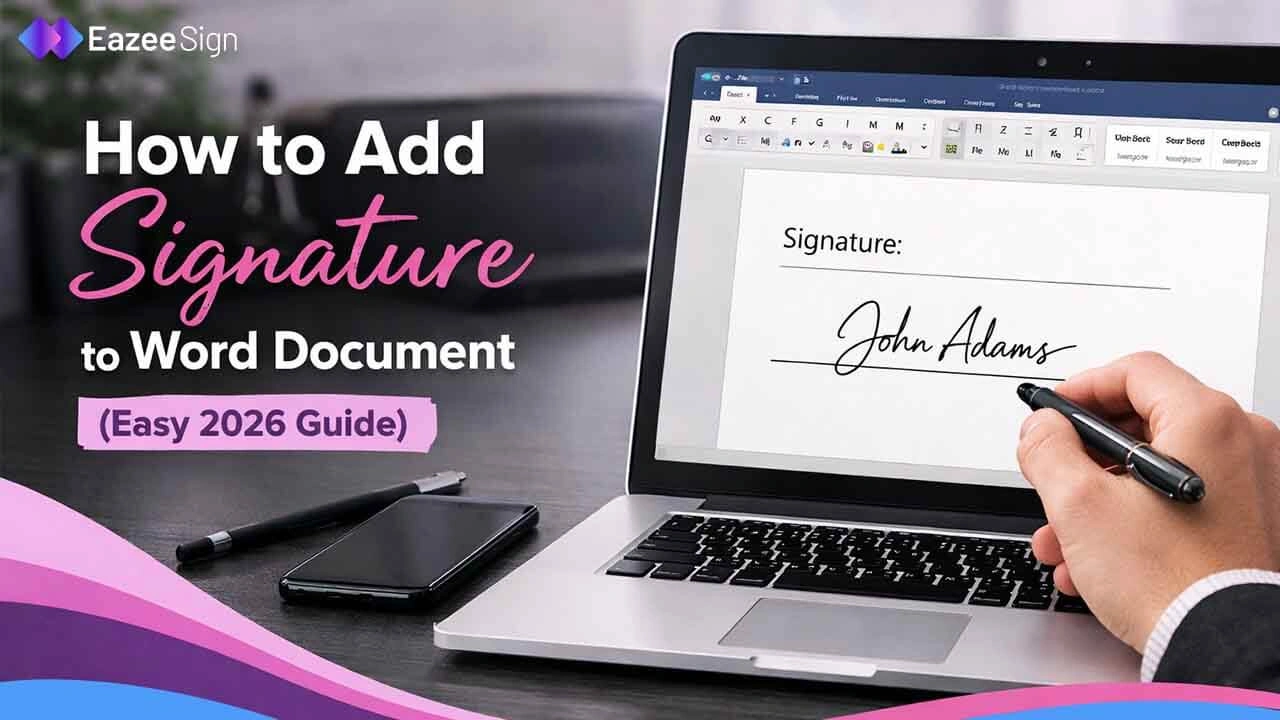
People use Word documents for various purposes, including writing proposals, research papers, contracts, etc. However, they always find it difficult to figure out how to add a signature to Word documents. Fortunately. Word document offers various easy ways to insert a signature.
Whether you’re using a touch-enabled device, uploading a scanned image, or opting for a more secure option to sign Word document online, you can find various flexible options on Word. Keep on reading the article to know 5 simple methods to insert a signature in Microsoft Word.
Why Do You Need to Add Signature to Word Documents?
Whether you are accepting a contract, acknowledging, or sharing a formal agreement, your signature is required for verification purposes and to prove the authenticity of the document. The document is considered reviewed and approved once it is signed by the concerned person.
A signature is crucial for validating agreements and contracts in professional and business environments. It is commonly required in legal documents and contracts, including employment letters, invoices, proposals, leases, and approval documents.
However, now organisations can easily sign the Word document digitally. Signing Word documents online has helped streamline workflows. Instead of printing, signing, and scanning documents, now users can quickly add a signature to Word electronically. This saves time and makes document management more efficient.
How to Sign Word Document Online?
Many businesses and individuals have transitioned from manual workflow to paperless operations. In the same way, signing documents digitally has become a common practice among them.
There are two common methods which are widely used for signing documents online. One is an electronic signature tool and second is digital signature software.
Digital Signature
A digital sign is a more advanced and secure type of e-signature that uses encryption technology to verify the identity of the signer and protect the document from tampering. This type of signature is commonly used for legal, financial, and government documents.
Digital signs use cryptographic certificates issued by trusted authorities. While signing digitally, a secure digital fingerprint which ensures the document has not been altered after signing.
Electronic Signature
An electronic signature software is a method used by various organizations for signing contracts/agreements and other documents digitally. It can be used by a person simply by typing their name and drawing a signature on a specific digital device. It also allow to upload the image or scanning a handwritten signature.
E-Signature has made it possible to sign any document without the need of physical paperwork. Most of the esign software allows users to place the signature anywhere in the document and share it instantly.
How to Add Signature to Word Document
From adding a signature line, drawing, or inserting a scanned image, to adding it digitally, you can explore various methods to add a signature in Word documents. Here we have listed 5 ways through which you can effectively add a signature online without any hassle:
Method 1 – Using Word’s Draw Tool (Touch Devices)
This method is for someone who are using any touch-enabled device. You just need to draw your signature using draw tool in the “word doc”. The exact steps are mentioned below that will help you sign any documents using draw tool in a Word document.
1 – Open the document you want to sign in Microsoft Word.

2 – Go to the Draw Tab. If you can’t find the “Draw” tab, then go to the “Review” tab and right-click on the tab. Click on “Customise the ribbon’ option and add “Draw” tab to enable it.

3 – You can select an option of pencil, pen or highlighter, and adjust the thickness or colour as per the requirement.

4 – Draw your signature with your finger or stylus directly on the document.
5 – Save your Document once you’re happy with the signature.
The method which is mentioned above is suitable for those who need to add or sign any document using a smartphone, tablet or any toch enabled device.
Method 2 – Inserting Scanned Image (Non-Touch Devices)
There is a common method to insert your signature into Word for non-touch devices like a laptop or desktop. Here are the steps through which you can add sign using a scanned image of your signature:
- First, sign on a piece of paper using a pen.
- Use a scanner or smartphone camera to scan or take a picture of your handwritten signature.
- Insert the Image into Word document.

- Go to the Insert Tab in Word.
- Now, click on the picture and select the image of your signature saved in your device.
- Click on Pictures and select the image of your signature from your device.
- Adjust size and place it where you want the signature to appear in the document.
- Once you’re satisfied, save your Word document and it is ready to share.
If you are non touch user and wants to insert your signature, then this is method is a reliable option for you. It is authentic and works well for your handwritten signature.
Method 3 – Include Typed Text with a Reusable Signature
If you frequently sign documents, creating a reusable signature block in Word can save you time. Through this method, you can combine your typed name, title, and signature image into one element to insert the sign whenever needed. Follow these steps
Step 1: Type your name, designation, company name, or any other relevant details.
Step 2: Go to Insert → Pictures and upload the scanned image of your handwritten signature.
Step 3: Select the entire signature block. Highlight both the typed text and signature image.
Step 4: Go to Insert → Quick Parts → Save Selection to Quick Part Gallery.

Step 5: Whenever you need to add your signature, go to Insert, then Quick Parts and choose the saved signature block.
This method is especially useful for those who regularly add signature to Word documents such as contracts, proposals, and official letters.
Method 4 – Use the Signature Line Feature
Microsoft Word also includes a built-in “Signature Line” feature that allows others to sign documents digitally. Here’s how to use it to sign Word document online:
Step 1: Open your Word document and place your cursor where the signature should appear.
Step 2: Go to Insert -> Text -> Signature Line to add the signature line.

Step 3: Add the signer’s name, title, and email address, and instructions if you have any.

Step 4: Click on Ok and the signature line will appear at the end of the doc.

This method is an ideal option when documents require multiple signatures or approvals.
Method 5 – Use a Digital Sign Tool to Add Signature
Another easy and most secure way to sign Word document online is using a digital signature tool. Digital platforms allow users to sign Word documents online, track signatures, and verify document authenticity. Here are the steps to sign a Word document using an online signature tool:
Step 1: Upload your Word document to the digital signature platform.
Step 2: Add your name, initial, and other signature option.
Step 3: Choose where you want to put the signature.
Step 4: Choose the signature style in the required section.
Step 5: Download the signed Word document or receive it directly on your registered email ID.
Limitations of Signing Documents in Word
While Microsoft Word provides several ways to add signatures, there are still some limitations to consider. Here we have listed some of the limitations of signing a contract in Word:
- Limited Security: Most Word signature methods, such as images or drawing tools, are not legally secure. Anyone can easily copy or alter the signatures. Therefore, there must be additional verification measures, especially for sensitive documents.
- Lack of Authentication: Word does not provide advanced identity verification, which is often required for official contracts or legal agreements.
- No Workflow Automation: Microsoft Word does not offer features such as automated signing workflows. Managing mass-signing contracts can be challenging. Signing each and every single document can be time-consuming. If you are looking for a feature to get your bulk documents signed online, you can approach to Esignature tools, such as EazeeSign app, to get it done without any hassle.
- Compatibility Issues: Some organisations or legal agreements may work on different formats, like PDFs or other secure formats. However, some signature formats may not appear correctly on different devices or versions of Word. Therefore, it includes extra steps to convert or re-sign documents in the required format.
Because of these limitations, many professionals prefer using digital platforms to add signature Word documents online.
Why Use EazeeSign to Sign Word Documents Online?
If you often add signatures to Word documents, using EazeeSign can make this easier. EazeeSign is a safe, simple, secure and trustworthy tool for e-signature. With the help of this tool, businesses or any individual can sign any documents quickly and safely online. Below are some interesting benefits that a user will enjoy while using it.
| Features | Description |
|---|---|
| Legally Compliant Digital Signs | Secure digital solutions that meet legal compliance requirements for business documents |
| Faster Document Signing | Upload and sign multiple documents within seconds |
| Secure Authentication | Advanced verification to ensure that signatures cannot be tampered or forged |
| Easy Collaboration | Send documents to multiple recipients and collect signatures without manual follow-ups |
| Works Across Multiple Formats | Sign Word documents online, PDFs, and other formats with ease |