B-1/E-23, Mohan Co-Operative Industrial Area, Mathura Road, Delhi-110044, India
- Digital Sign Apps
- 09-Sep-2026
- -
- 0 Comments
Printing a Google Doc just to sign it, then scanning it back in, is one of those tiny workflow habits that is stuck around way longer than it should have. If you have ever found yourself doing that dance or forwarding a doc around by email hoping someone remembers to sign it — there is a much faster way to handle it.
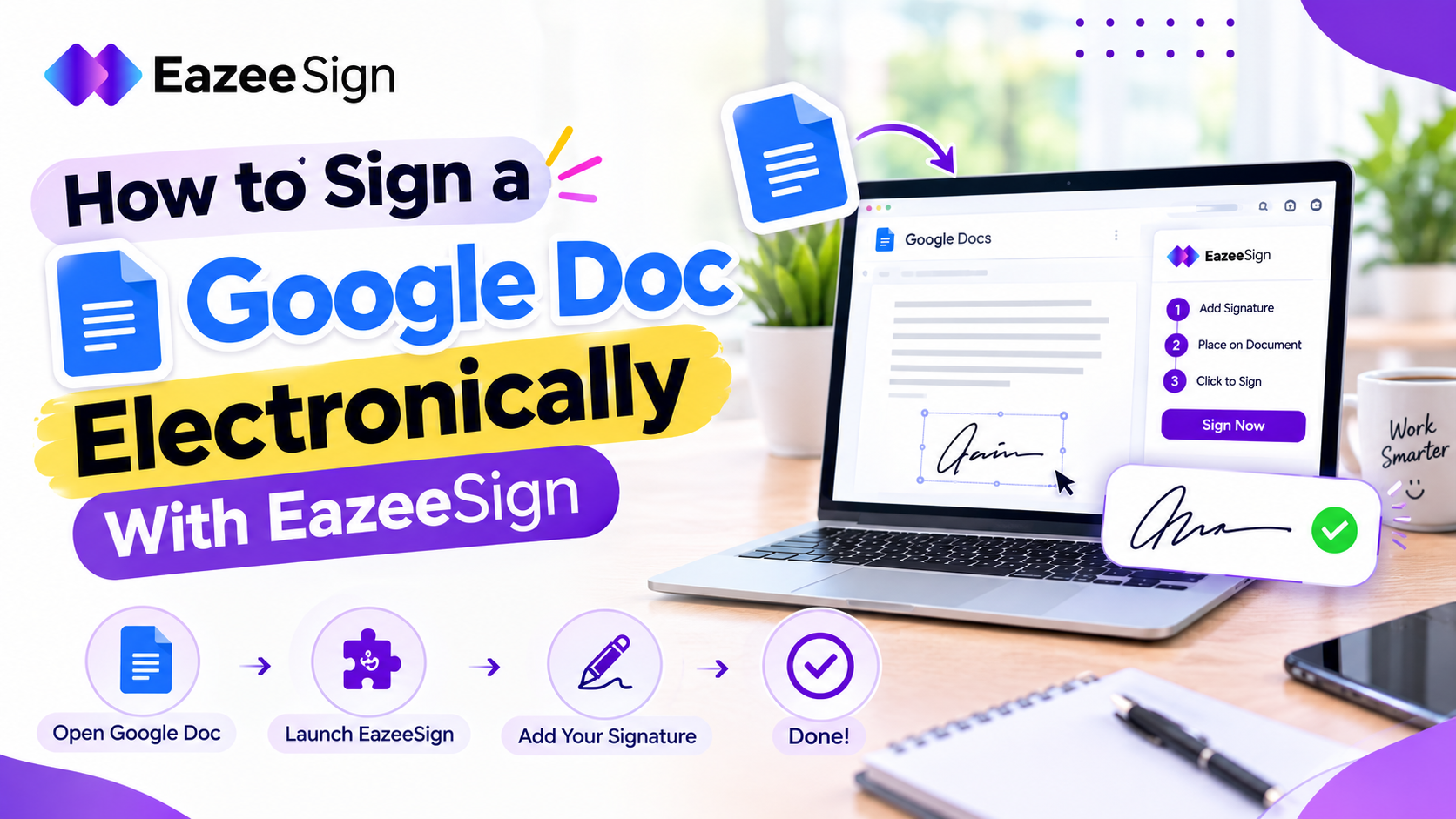
This guide walks through exactly how to sign a Google Doc electronically, how to add a signature in Google Docs and how to get an eSignature Google Docs workflow going using EazeeSign.
One thing worth knowing upfront: EazeeSign does not currently plug directly into Google Docs as an add-on. What it does instead is take a PDF or Word file and turn the signing process into something structured using digital signature software, with multiple signers, a defined order, and a record of who signed what and when. So the workflow here is export first, then sign. It only adds one extra step, and it is a step Google Docs already makes easy.
Why You’d Want a Dedicated eSignature Tool in the First Place
Google Docs is genuinely great for drafting and editing. Where it starts to fall short is the signing step. There is no built in way to route a document to several signers in a set order and a name typed straight into the text does not carry much weight if it is ever questioned later.
That is fine for something low stakes. It is not fine for an offer letter, an NDA or a vendor agreement. The kind of document where you want an actual audit trail and a proper signing process behind it. That gap is exactly what a dedicated document signing app or software tool is built to close.
How to Sign a Google Doc Electronically With EazeeSign
Here is the actual process, start to finish.
Step 1: Finish your document in Google Docs. Draft and edit as normal. Once it is ready to send out for signature, you are done with the Google Docs part.
Step 2: Download it as a PDF or Word file. From Google Docs, go to File → Download and choose PDF or Word (.docx). Either format works, EazeeSign accepts both, with files up to 100MB.
Step 3: Upload the document into EazeeSign. Log in to EazeeSign and upload the file you just downloaded — drag and drop works or browse to select it.
Step 4: Add your signers and set the signing order. Enter the names and emails of everyone who needs to sign. If the document needs to go to more than one person in sequence — say, an employee first, then a manager, you can set that order so it moves along automatically once each person finishes.
Step 5: Place your fields. Add signature fields and any other fields the document needs, directly onto the file. EazeeSign’s auto signature detection can pick up likely signature spots automatically, which cuts down on manually placing every field by hand.
Step 6: Send it. Once everything’s placed, send the document out. Each signer gets a link to sign in their browser. No login or software install required on their end.
That’s the whole flow. One export step out of Google Docs then EazeeSign handles the rest like tracking, reminders and a complete audit trail of the signing activity.
How to Insert a Signature in a Document You have Received
Sometimes you are not the one collecting signatures, you are the one who needs to sign something someone sent you. If you have received a signing request, the process is shorter:
- Open the signing link you were sent.
- Click the signature field where prompted.
- Choose how you want to sign — type your name, draw it or upload an existing signature image.
- Confirm and submit.
No account or software install needed on the signer’s end, that is really the whole answer to how to sign in Google Docs originated documents once someone else has set up the request.
Read More – How Safe Are Electronic Signatures?
Why Use Templates for Documents You Send Often
If you are sending the same type of document repeatedly — offer letters, NDAs, vendor agreements, re uploading and re placing fields every time is the part that eats the most time. With EazeeSign, you can save a document as a reusable template which helps to keep both your fields and signer setup intact when you send the document the next time. This is of great importance for those working in HR, sales or procurement who send out documents with the same structure weekly.
Google Docs’ BuiltIn Signature Option vs. EazeeSign
Some Google Workspace plans include a very basic native signature feature. It’s fine for casual, low stakes use, but a dedicated electronic signature software platform gives you more structure once a document actually matters.
| Capability | EazeeSign | Google Docs builtin signature |
| Audit trail | Detailed signing history for every document | Minimal to no tracking |
| Multi-party signing & order | Set a signing sequence across multiple recipients | Single step signing only |
| Reminders | Automatic reminders for pending signatures | None |
| Bulk sending | Send one document to many recipients at once | Not available |
| Two factor authentication | Available as an extra verification step | Not available |
| Reusable templates | Save fields and signer setup for recurring documents | Not available |
Why This Actually Matters, Not Just as a Feature List
A one off typed signature in a Google Doc is fine for something you will only ever send once. The moment it’s a document you’re sending regularly or one where a dispute would actually matter, having a recorded audit trail, who signed, when and in what order — is the part that holds up if anyone ever questions it.
The signing order piece matters for the same reason. Without a defined sequence, a multi person sign off usually means manually emailing the next person once the last one finishes. Setting that order once in EazeeSign removes that step.
Read More – A Guide to Different Types of Electronic Signatures
Is an Electronic Signature Legally Binding in India?
Yes. Electronic signatures are accepted in relation to the provisions of the Information Technology Act, 2000 of India as per the Indian Evidence Act. The EazeeSign solution is created based on this principle and is quite essential to know in case of appearing in accordance with Indian law.
Conclusion
Signing a Google Doc electronically just takes one extra step beyond what you are already doing in Google Docs: export it, then bring it into EazeeSign for a properly structured signing process, signer order, an audit trail and reminders that keep things moving instead of chasing signatures over email.
Frequently Asked Questions
How do I add a signature in Google Docs without printing it?
Download the document as a PDF or Word file from Google Docs, then upload it into EazeeSign to add a signature field — no printing or scanning required.
Is signing a Google Doc electronically legally valid in India?
Yes. Electronic signatures are recognized under the IT Act, 2000 and treated as admissible evidence under the Indian Evidence Act.
Can I set a signing order for multiple people?
Yes. EazeeSign lets you control exactly who signs first, second and so on, which keeps multi party agreements organized instead of relying on manual follow ups.
Do the people I send a document to need an EazeeSign account?
No. Recipients sign directly in their browser through a signing link — no login, app or software installation required.
Can I try EazeeSign for free before committing?
Yes. EazeeSign offers a 7 day free trial with no credit card required.