B-1/E-23, Mohan Co-Operative Industrial Area, Mathura Road, Delhi-110044, India


- Uncategorized
- 10-Apr-2026
- -
- 0 Comments
Excel is everywhere.
More than 1.1 billion people use it globally, and for many teams it’s part of daily work. From financial reports to internal approvals, spreadsheets still sit right at the center of business operations.
In a lot of offices, Excel isn’t just used once in a while. It shows up again and again during the day, whether it’s for tracking, reviewing, or approving something.
But then comes the tricky part.
Signing an Excel file doesn’t feel as simple as it should. You try to insert digital signature in Excel, and suddenly there are certificates, restrictions, and a few steps that aren’t very obvious at first.
Let’s simplify this.
Can You Insert a Digital Signature in Excel?
Yes, you can insert digital signature in Excel. But it depends on where you’re working from.
Because this option is available only in the Windows desktop version. If you are signing a doc on Mac or using Excel in a browser, you’ll notice that the feature is either missing or doesn’t behave the same way. You can open a signed file there but adding one yourself is usually not possible.
This is where most people hit confusion.
Even on Windows, the process isn’t as flexible as other features. Once the file is signed, Excel starts treating it like a final version. Try editing it after that, and the signature won’t stay valid.
So yes, it works. Just not everywhere, and not in every situation.
How to Insert Digital Signature in Excel
There are two ways to insert digital signature in Excel, and both are built into the software.
One option adds a visible signature line inside the sheet. It shows clearly where someone needs to sign. The other option works in the background, it doesn’t appear to the user on the sheet at all, but it actually secures the file.
Both methods which are mentioned above need a digital certificate and both are only limited to the Windows desktop version.
Which one you choose — depends on what you need. If the signature has to be visible you can go with the signature line. If the goal is just to secure the file after approval, the invisible option does the job.
Method 1: Add a Signature Line in Excel
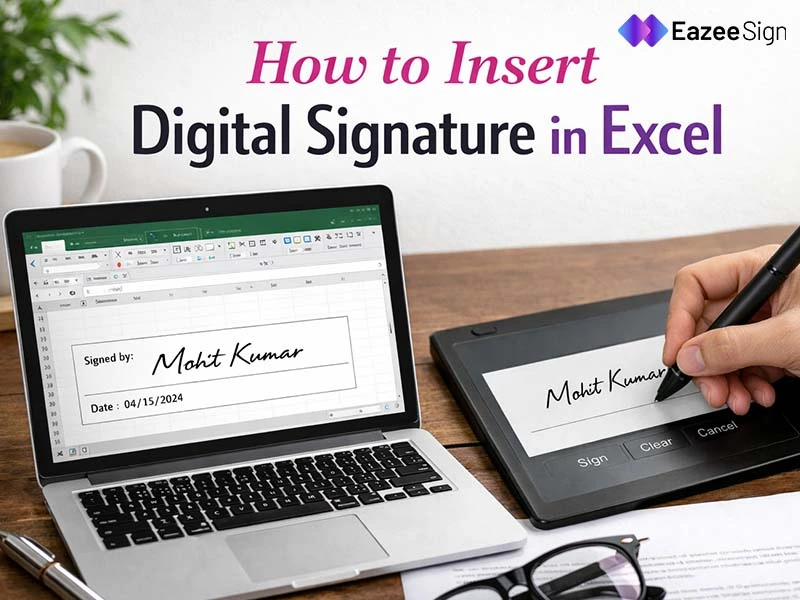
Open Excell file first, now go to the Insert tab. In the text section, you’ll find the option for a signature line. Once you click it, Excel asks for some basic details like the signer’s name and role.
After that, a placeholder appears in the sheet. It marks the exact spot where the signature should go.
To complete it the signer can click on the line, and choose how to sign. It could be anything like typing their name or uploading an image or drawing a signature if you are using supported device. Once confirmed, the signature is applied to the file.
This works well when you want the approval to be clearly visible inside the document.
Method 2: Add an Invisible Digital Signature
If you don’t need anything visible on the sheet, there’s another option.
Go to File, then open the Info section. From there, select Protect Workbook and choose to add a digital signature. Excel may ask for a short confirmation before applying it.
Once done, the file is marked as signed, but you won’t see anything directly on the sheet. The signature sits in the background and can be verified later.
This approach is more about confirming that the file hasn’t been changed after approval rather than showing a visible sign-off.
Requirements Before You Add a Digital Signature
Before trying to insert digital signature in Excel, it helps to check a few things.
You’ll need a digital certificate first. Without it, Excel won’t let you complete the signing process. Now it becomes your identity when you are signing the file.
Also ensure you’re using the Windows desktop version — As other versions don’t fully support this feature. And the file itself should be editable before you start.
One thing worth keeping in mind, once the document is signed, Excel treats it as final. So it’s better to double-check everything before adding the signature.
Why Digital Signatures Lock the Excel File
This is where things feel a bit confusing.
When you insert digital signature in Excel, it’s not just adding a name to the file. The signature is linked using encryption, which captures the exact state of the document at that moment.
If anything changes later, even something small, Excel sees it as a different version. That’s why the signature stops being valid.
Because of this, the file gets restricted after signing. It’s meant to stay unchanged so anyone viewing it can trust that nothing has been modified.
So if edits are still expected, it’s better to wait before signing.
Limitations of Excel Digital Signatures
Excel does provide this feature, but a few limitations show up pretty quickly once you start using it more often.
The biggest one is platform support. It works only on Windows, which can be a problem if your team uses different devices. Then there’s the sensitivity issue. Even a small change can invalidate the signature.
The certificate setup is another point. For someone who hasn’t done it before, it can feel a bit technical.
And beyond that, Excel doesn’t offer workflow features. There’s no tracking, no signing order, no reminders. Everything has to be handled manually, which doesn’t always scale well.
When Excel Method Doesn’t Work
Things start getting a bit messy when more people are involved.
If a document needs multiple approvals, Excel doesn’t give you a clean way to manage that. You can’t track who has signed or control the sequence. It quickly becomes manual.
Then there’s the device issue. Som individual on Windows might sign the file but the users using Mac or different browser versions, which may not be able to continue smoothly.
So this become friction for the team, when you have to send a file outside and the recipient doesn’t have the same setup you have.
Sharing the file outside your team can also create friction, especially if the recipient doesn’t have the same setup.
So while Excel works fine for basic use, it starts to feel limited as soon as collaboration increases.
Better Way to Sign Excel Files
At some point, most teams move away from signing directly inside Excel.
Instead, they convert the file into a format that’s easier to share and then use a tool that handles the signing process separately. This removes a lot of the friction around devices, certificates, and tracking.
It also makes things simpler — when multiple people are involved and the entire flow can be managed in one place only.
Thre are some platforms like EazeeSign which can handle this in a more streamlined way. Here focus is not just on adding a signature but completing the approval process smoothly.
Final Thought
Excel lets you add a digital signature. That part is clear.
What’s not always clear is when it actually works well and when it doesn’t. In smaller setups, especially on a single system, the feature does its job. But once you start involving different devices or more people, the limitations show up quickly.
So it’s not just about knowing how to insert digital signature in Excel. It’s about understanding where it fits. For simple approvals, it works. For anything more complex, you’ll probably need a better setup.