B-1/E-23, Mohan Co-Operative Industrial Area, Mathura Road, Delhi-110044, India


- Digital Sign Apps
- 06-Nov-2026
- -
- 0 Comments
A PDF lands in your email inbox. A neat signature sits at the bottom, a confident email sits on top and a deadline looms. Everything looks finished.
Looks are cheap. Anyone can paste a signature image into a PDF in ten seconds. What separates a genuinely signed document from a decorated one is the data behind the mark and that data can be checked. It takes about 2 to 3 minutes and most people skip it.
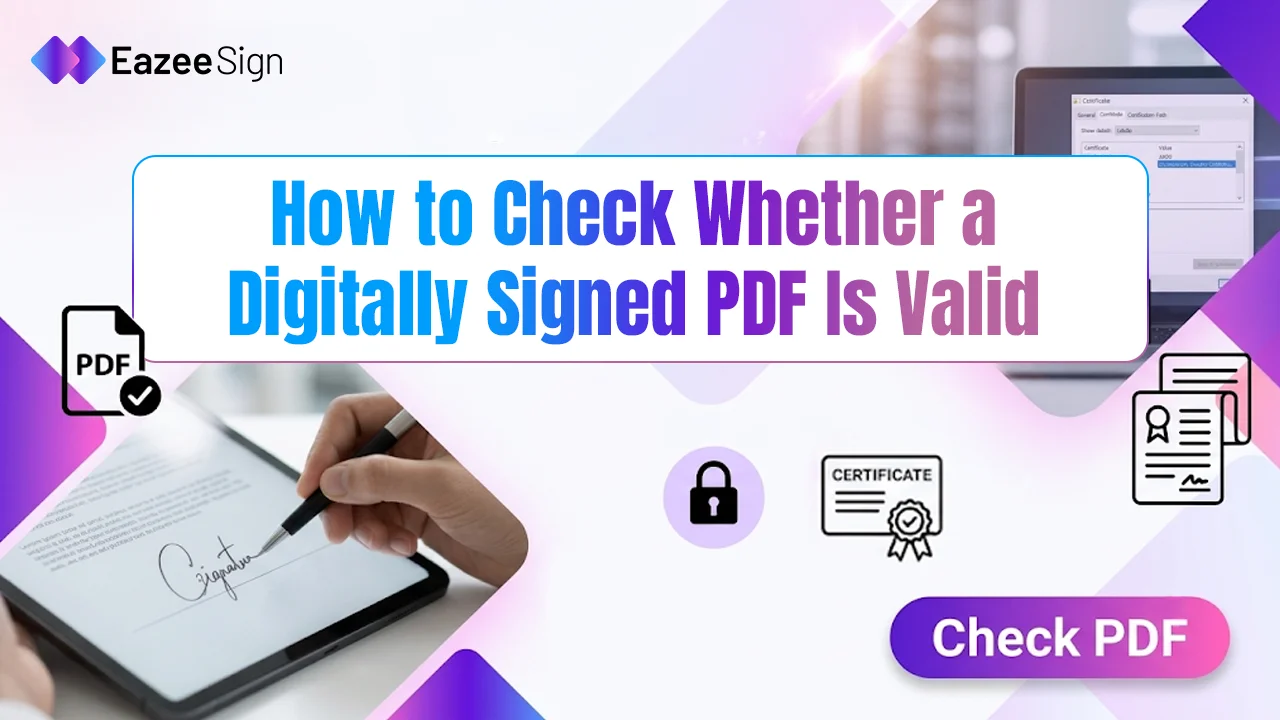
In this post we will cover how a person can confirm that a signed PDF is genuine, what the warning messages mean and which red flags deserve attention.
What Makes an Electronic Signature Valid in a PDF?
Three things have to hold. The signer’s identity must be verified. The document must be unchanged since signing. And the certificate behind the signature must have been trusted at that moment.
Miss one and the whole thing falls apart.
The type of signature changes — how the check works. A digital signature uses certificate based encryption to tie the signer to the file so the eSignature software can test it based on mathematical logic. A typed name or a drawn text is still an electronic signature, but it has no built-in cryptographic proof. Those lean on the signing platform’s audit trail instead. So the first job is figuring out which kind of signature arrived.
Step by Step Checks for an Electronic Signature in a PDF
Start with the right tool. A browser preview often hides signature details. Adobe Acrobat Reader or any PDF reader with validation support, shows the full picture.
Next comes the signature panel. Most readers display a banner at the top or an icon in the side panel, reporting a status of valid, unknown or invalid. One line, a lot of information.
Then the question of changes. The panel states whether the file was modified after signing. A clean “no changes” message is the goal. Anything else needs a closer look before the document gets acted on.
After that, the certificate. Opening its details reveals the signer’s name, the issuing authority and the validity dates. The name should match the person who supposedly signed. The dates should cover the day of signing, not necessarily today.
A short checklist keeps the rest simple:
- The issuer appears on a trusted list
- The certificate was not revoked at the time of signing
- A timestamp shows exactly when the signature was applied
- The signer’s name matches the contract
Timestamps deserve extra attention. A certificate that expired last month does not cancel an esignature made while it was still live. Only the timestamp proves that timing.
What the Warning Messages Mean on an Electronic Signature
Readers speak in colours. Green is a valid signature with no changes since signing. Yellow means something could not be confirmed, usually because the issuer is not on the reader’s trusted list. Red means the signature is broken.
Yellow and red call for different responses. “Signer’s identity is unknown” often points to a missing trust link, which a quick call to the sender can settle. “Document has been altered” is another story entirely. The content changed after signing and the signature no longer covers it.
One finance team learned this with a vendor invoice. The PDF showed a red warning and the sender blamed a software glitch. A request for the original file revealed the bank details had been edited after signing. The payment never went out.
Red Flags That Point to a Fake Electronic Signature
Some signs show up before any panel is opened.
A signature that looks perfect but has no entry in the signature panel is the biggest one. That is just an image. Others to watch for:
- A self-signed or expired certificate on a high-value contract
- A signer name that does not match the certificate holder
- A sender pushing to skip verification “because it is urgent”
Urgency is the oldest trick there is. Genuine signers rarely object to a two-minute check.
Making Electronic Signature Checks a Habit
Verification works best when it happens before action, not after a problem. Check the panel before approving a payment — countersigning a contract or filing a record.
Using a signing platform that keeps a full audit trail helps too. Since the evidence is stored in one place instead of scattered across inboxes. Over time, validation becomes as routine as reading the subject line.
As more contracts move online, the people who check signatures will be the ones who rarely get burned.